The Problem Every Vibe Coder Knows
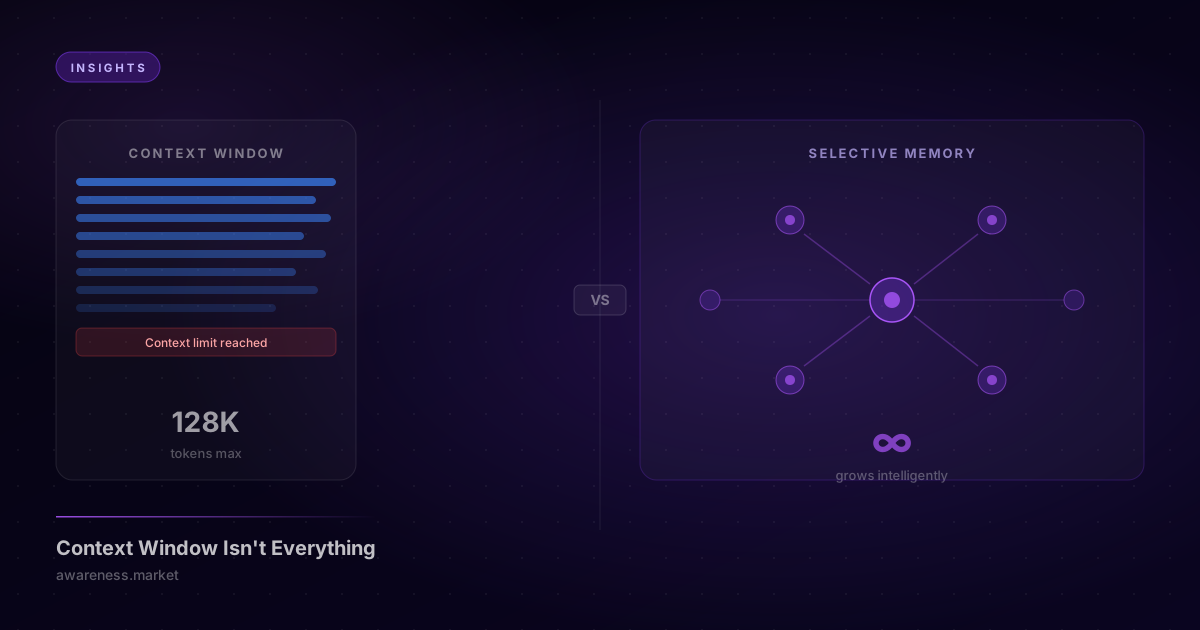
You're deep in flow with Cursor. You've explained the architecture, the naming conventions, the edge cases. The AI gets it — for about 20 minutes.
Then the context window fills up, and you're back to explaining the same things again.
This tutorial fixes that. In 30 minutes, you'll connect Cursor to Awareness and give your AI a memory that persists across every session.
What You'll Build
By the end of this tutorial, your Cursor setup will:
- Remember architectural decisions you've made — forever
- Recall code conventions without you repeating them
- Share context between multiple AI tools (Cursor, Claude Code, ChatGPT)
- Surface relevant past context automatically when you start a new chat
Prerequisites
- Cursor installed (any version)
- An Awareness account (free tier works) — sign up here
- 30 minutes
Step 1: Get Your MCP Config (2 minutes)
- Log in to awareness.market
- Click MCP Server in the left sidebar
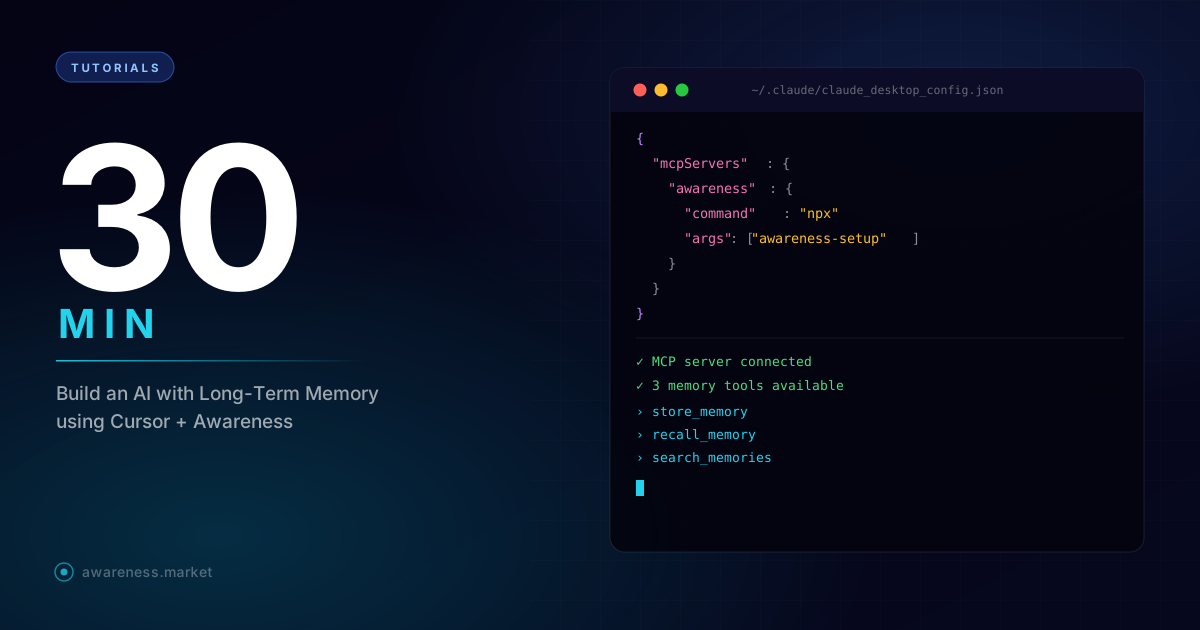
- Copy the generated config snippet — it looks like this:
{
  "mcpServers": {
    "awareness": {
      "url": "https://awareness.market/mcp",
      "headers": {
        "Authorization": "Bearer aw_your_key_here",
        "X-Awareness-Memory-Id": "your-memory-id",
        "X-Awareness-Agent-Role": "builder_agent"
      }
    }
  }
}
Step 2: Connect Cursor (3 minutes)
- Open Cursor settings:
Cmd/Ctrl + Shift + J - Go to Features → MCP
- Paste the config from Step 1
- Restart Cursor
You should see "Awareness MCP connected" in the MCP status panel.
Step 3: Create Your First Memory (5 minutes)
Now comes the fun part. Start a new Cursor chat and tell it:
Please store a memory: our project uses Next.js 16 with Server Components.
We never use Redux — state management is done with Zustand.
The design system is TailwindCSS v4 with a dark-first approach.
Cursor will call the awareness_record MCP tool and your Awareness dashboard will show the new entry.
Go to awareness.market/memories — you'll see your memory sitting there, indexed and searchable.
Step 4: Test the Recall (10 minutes)
Close Cursor completely. Reopen it. Start a brand new chat and ask:
What state management library does our project use?
Watch what happens. Awareness automatically injects the relevant memory into context. Your AI answers correctly — even in a fresh session with zero prior context.
What's happening under the hood
When you start a chat in Cursor with Awareness MCP connected:
- Your question is semantically searched against your memory store
- The most relevant memories are injected into the system prompt automatically
- Your AI responds with full awareness of past decisions
You didn't add anything to the system prompt. You didn't paste any documentation. The memory just… works.
Step 5: Build a Memory Library (10 minutes)
Now let's add the memories that will make the biggest difference:
Architecture decisions
Store memory: We chose PostgreSQL over MongoDB because our data is highly relational.
The decision was made on 2026-02-15 after evaluating query patterns.
Do not suggest switching to a document database.
UI conventions
Store memory: All marketing pages are dark-themed (dark: class forced, no toggle).
App pages support light/dark via system preference.
Cover images should always be 16:9 for consistency.
Coding style
Store memory: We use named exports everywhere, never default exports
(except Next.js pages which require it).
Function components only — no class components.
The Real Payoff
After a week of building with Awareness, you'll have a memory store that acts like a senior developer who was present for every decision.
When you onboard a new AI tool — even ChatGPT or Claude — it instantly has access to months of project context via the same MCP endpoint.
Your AI stops being a visitor to your project. It becomes a teammate.
Next Steps
- Explore the Memory Market — browse and install pre-built memory templates for popular frameworks
- Set up Skills — configure AI behaviors that trigger automatically based on your memories
- Share with your team — invite collaborators to the same memory space
Ready to go deeper? Check out the full SDK documentation →